










Contact Us usa@touchtennis.com
Region
My touchtennis
Please select a category below to view our frequently asked questions:
After having signed into the website, you should see a page like this:

Click on the "My touchtennis" button highlighted in red here.
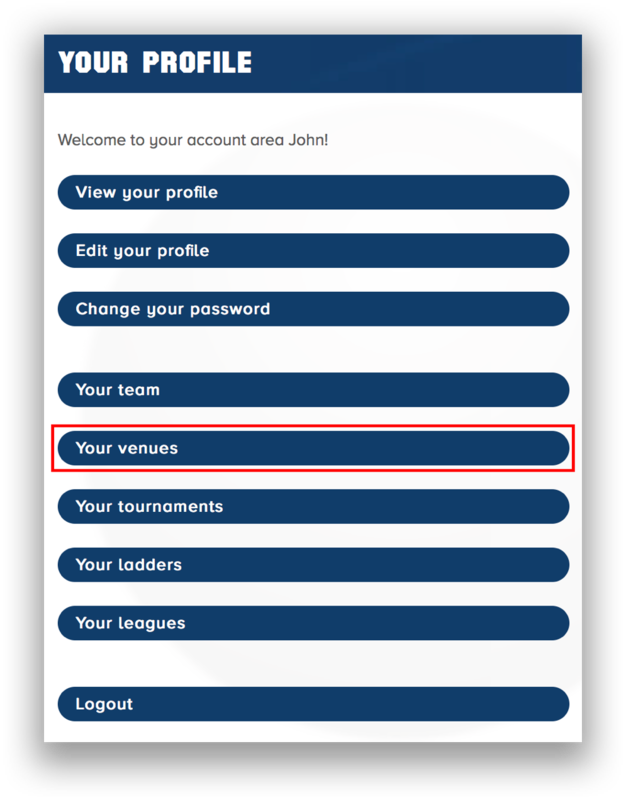
Now you should be brought to this page with nine buttons:

Click on "Your venues" highlighted in red and you should reach this page with two buttons

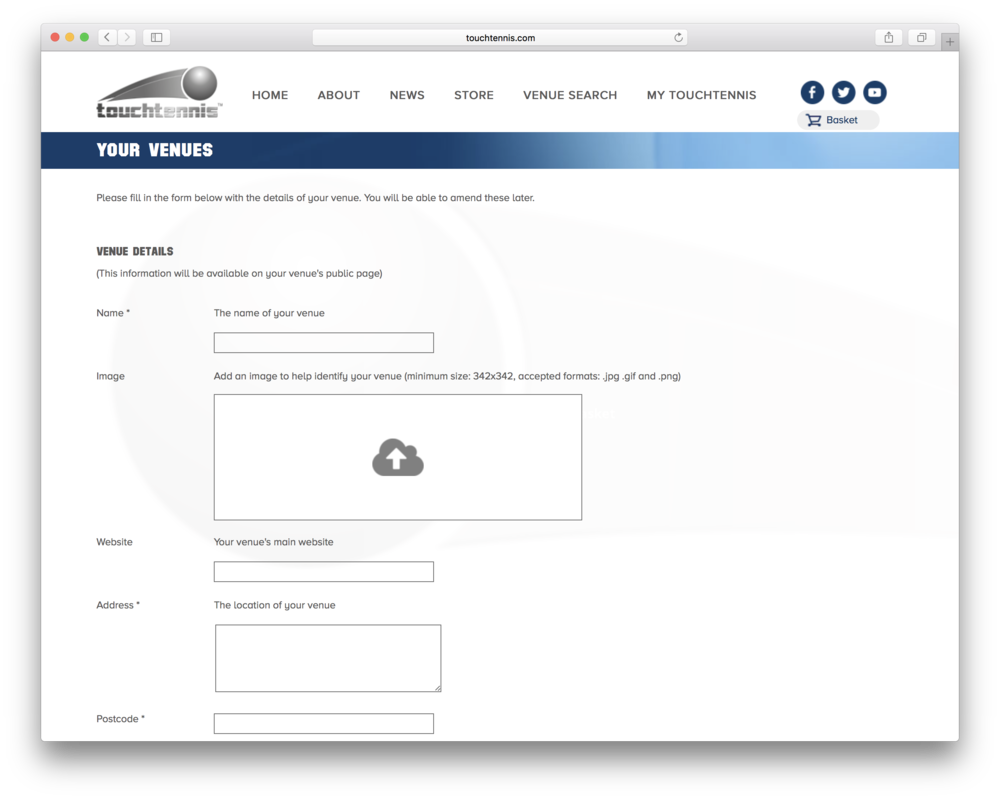
Click on "Add a new venue" and you will be brought to a form to fill about the venue that you want to add
note: not all fields are required, those that are, are marked with an asterisk (*), such as the first "Name" field

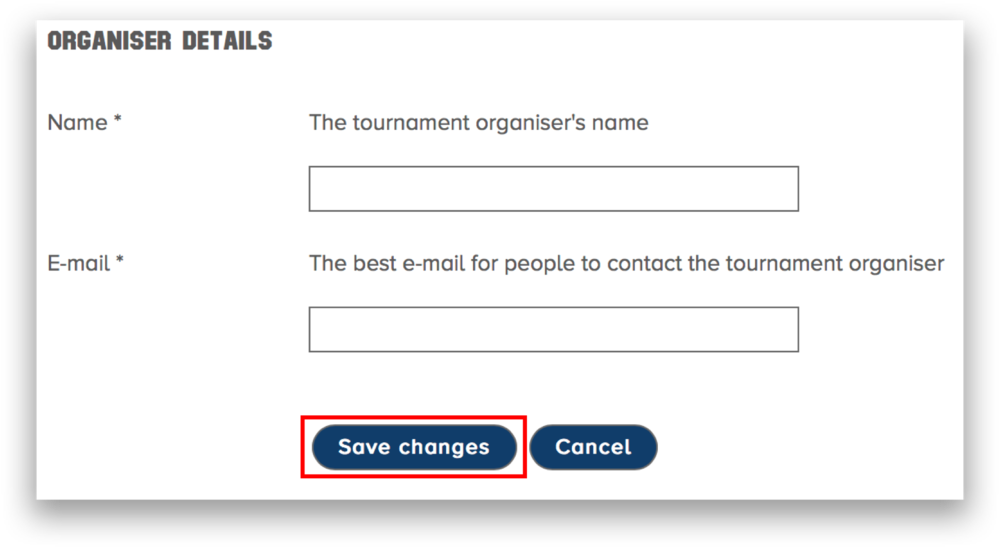
After having filled out the form in full, click on the "Save changes" button highlighted in red
Now that you have created your venue, it will be sent to a touchtennis administrator for them to approve. Therefore your venue's page will not be publicly available immediately.
To add a ladder you must have already added a venue to the site for the ladder to be held at. If you have not done this and wish to do so, look at the first FAQ in the "Managing my venue" section on this FAQ page titled "How do I add my venue to the touchtennis website?".
If you have already added a venue to the site the next thing you must do is go to the "My touchtennis" menu.

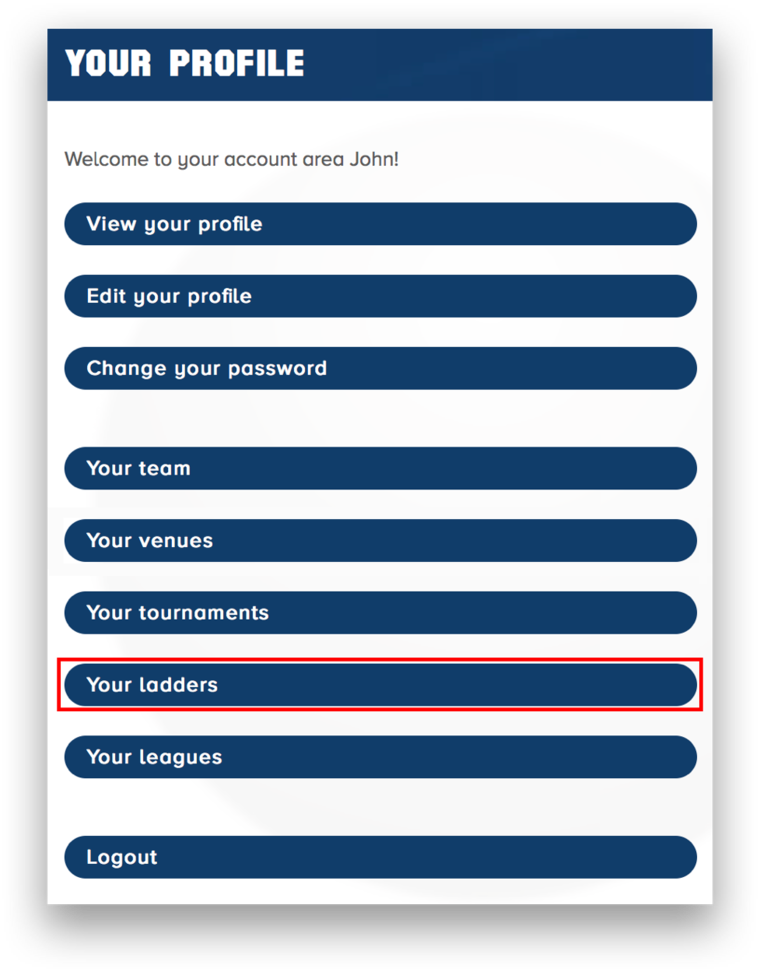
Now click on "Your ladders"

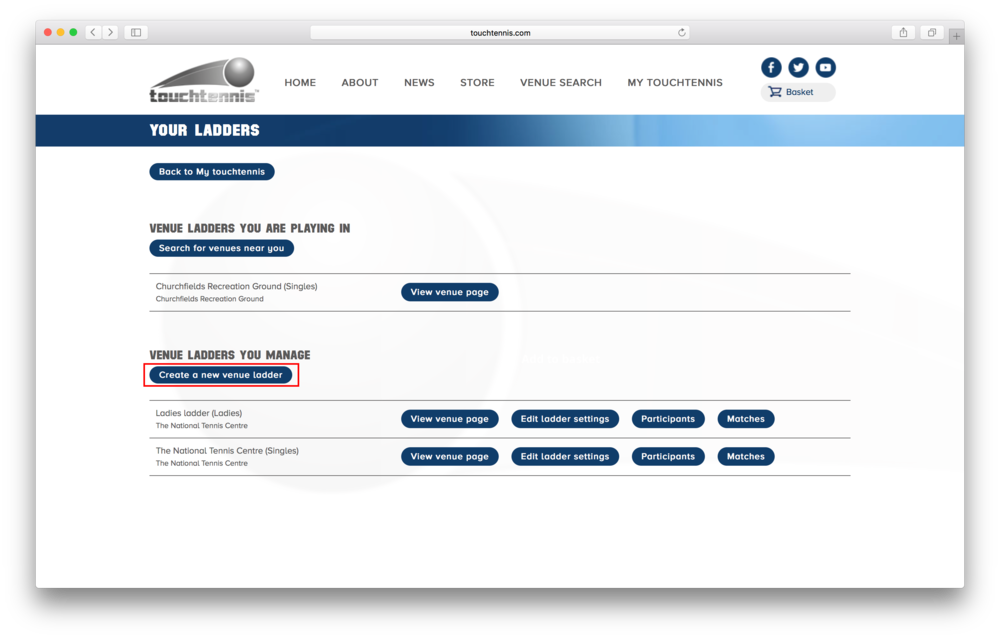
Here you can see any ladders that you are playing in, as well as any that you manage. To add a new ladder, click on "Create a new venue ladder".

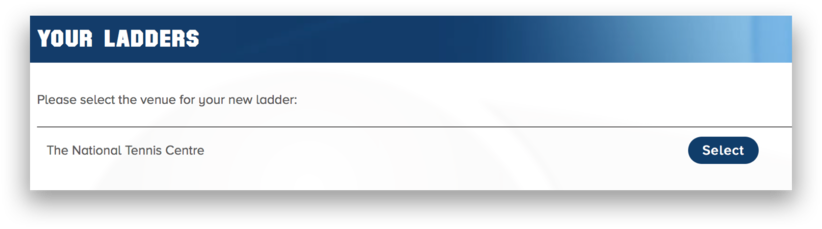
You will then be presented with a list of all the venues that you manage, choose which one you want the ladder to be hosted at and press the "Select" button to the right of it.

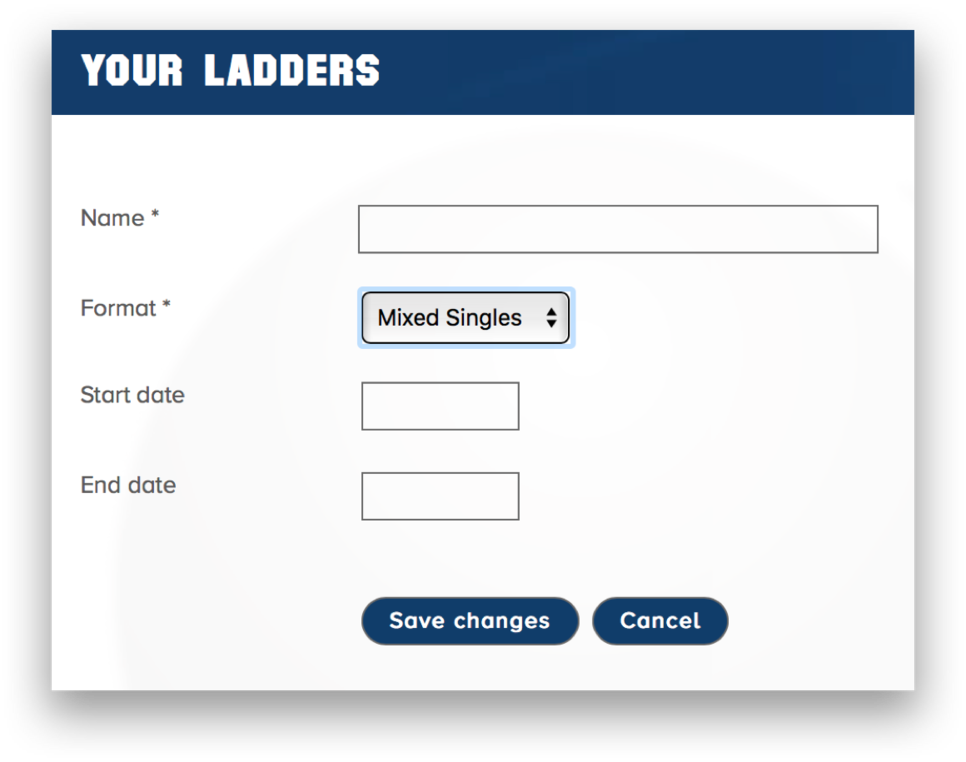
You will then need to fill out a short form detailing the name of the ladder, the type of ladder and the start / end dates.

First head over to the My touchtennis menu.

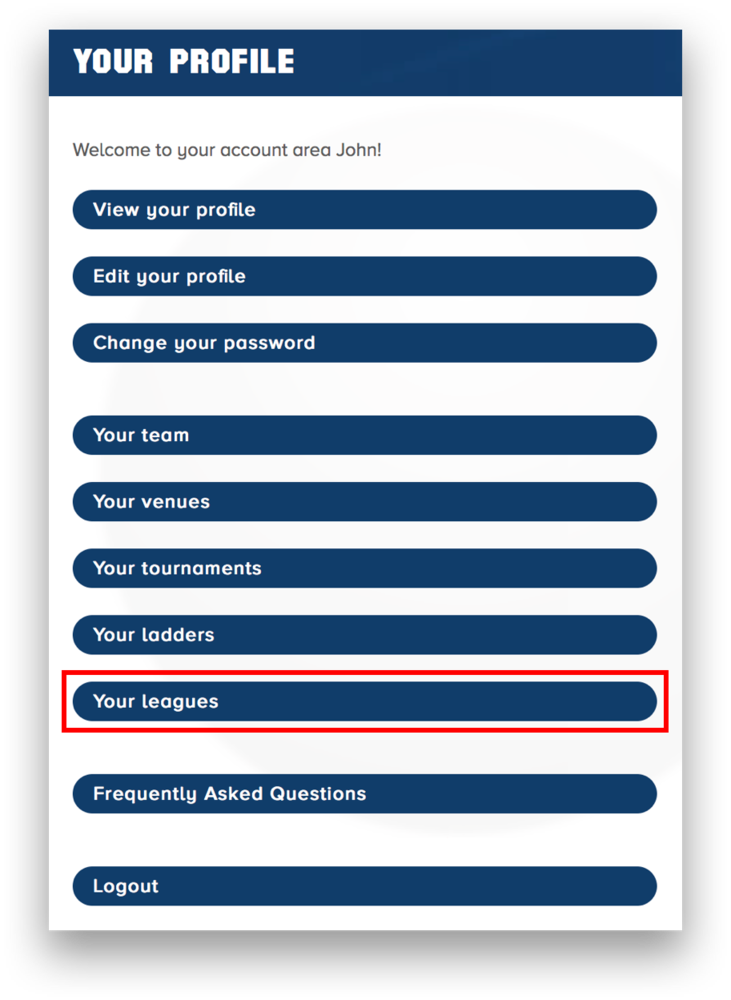
Once there, click on "Your Leagues".

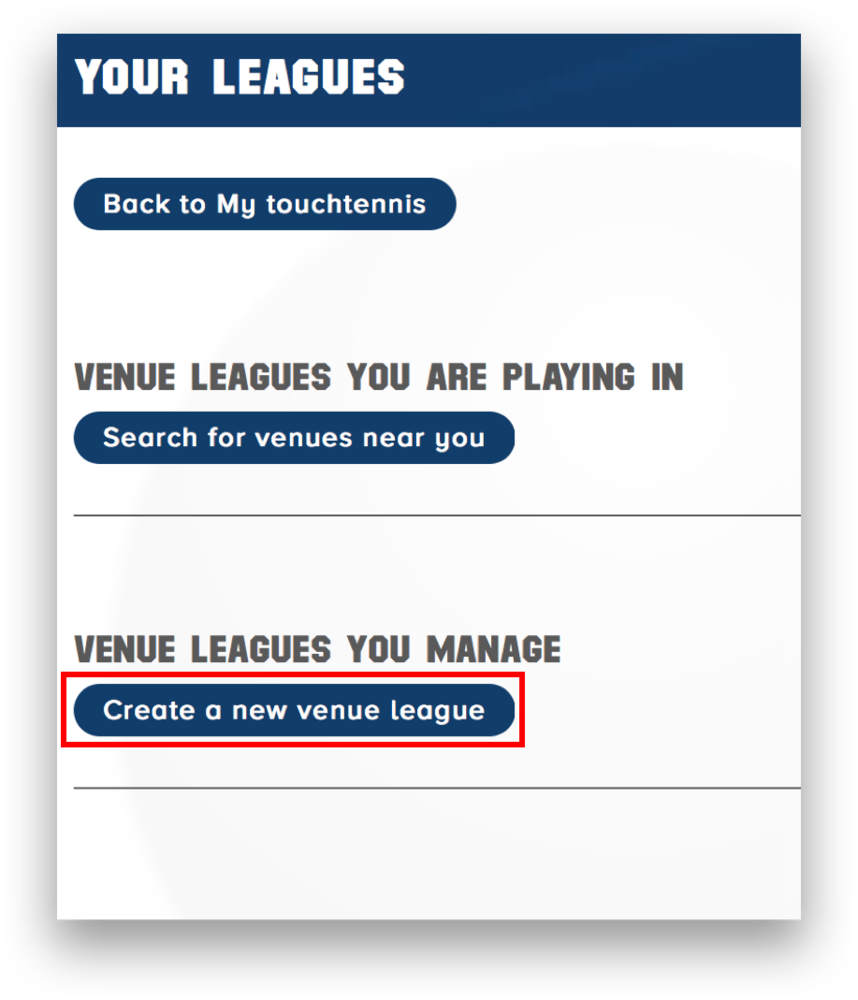
You should now see a page which shows which leagues you play in and which you manage. Click on "Create a new venue league".

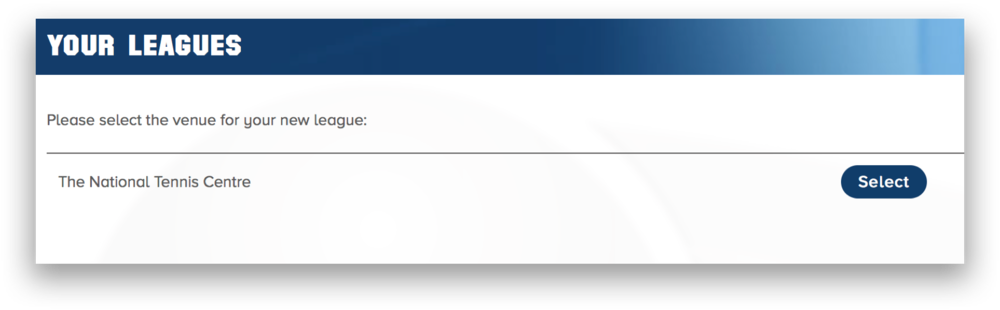
Now you should see a list of all venues that you manage. Find the venue you want to add the league to and click the "Select" button to the right of it.

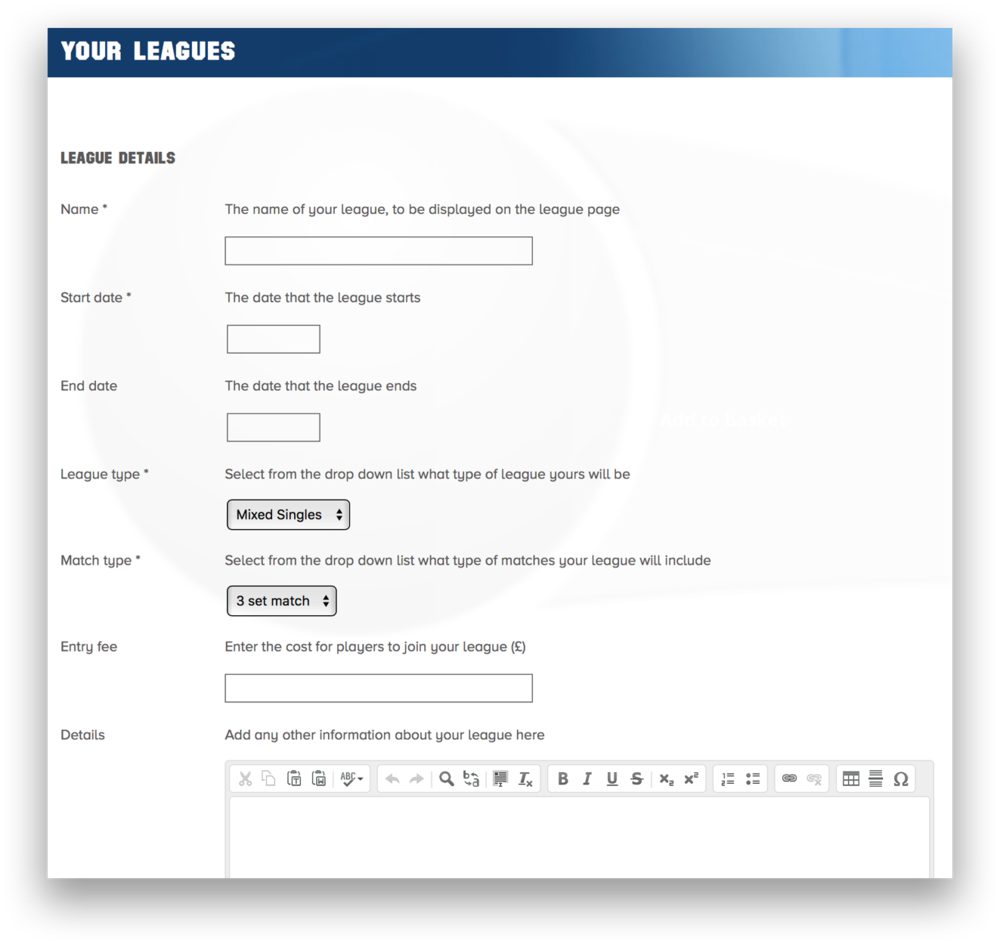
Now you should see a form to fill in with information about your new league.

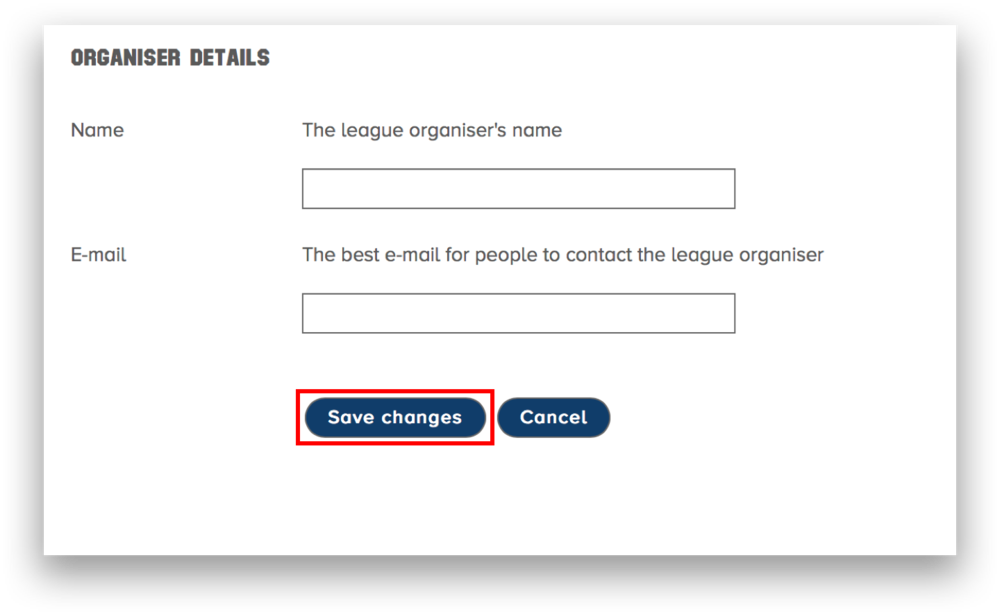
Once you have filled in the whole form, click on "Save changes" to create your new league.

To enter a tournament, click on "My touchtennis" on the front page

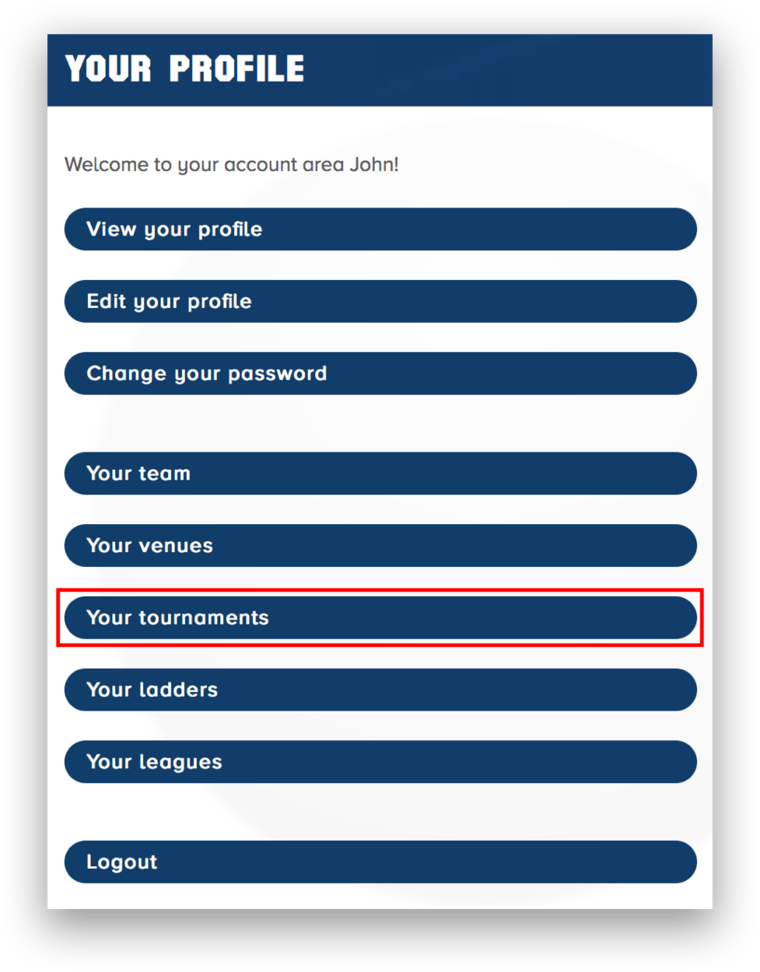
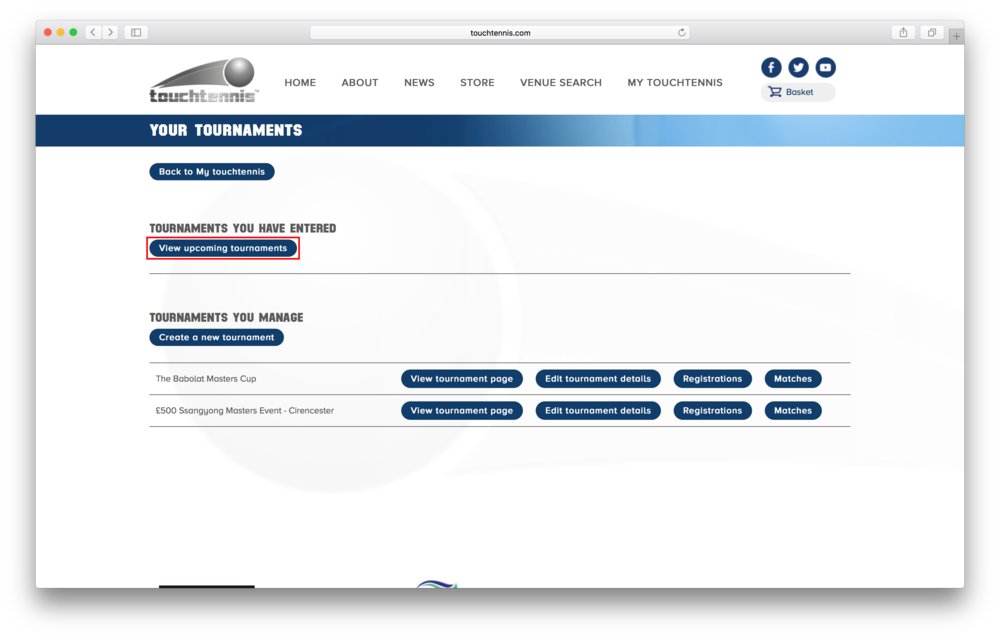
Then click on "Your tournaments"

Here you will see any tournaments that you have already entered as well as any that you manage. To join a new tournament click on "View upcoming tournaments".

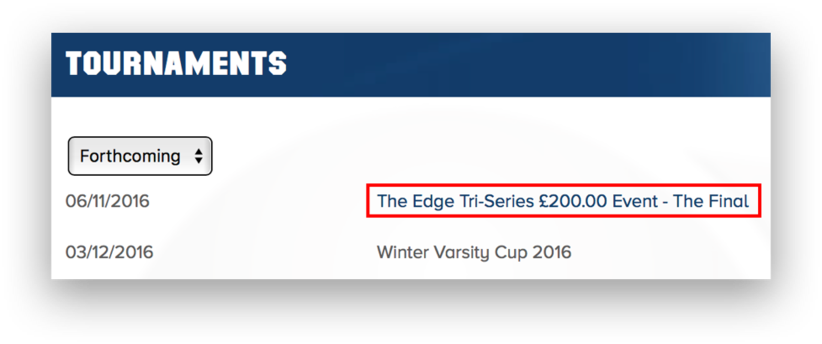
You will then be presented with a list of planned tournaments and when they are scheduled to start. Click on the name of the tournament you wish to enter to see the tournament's main page.

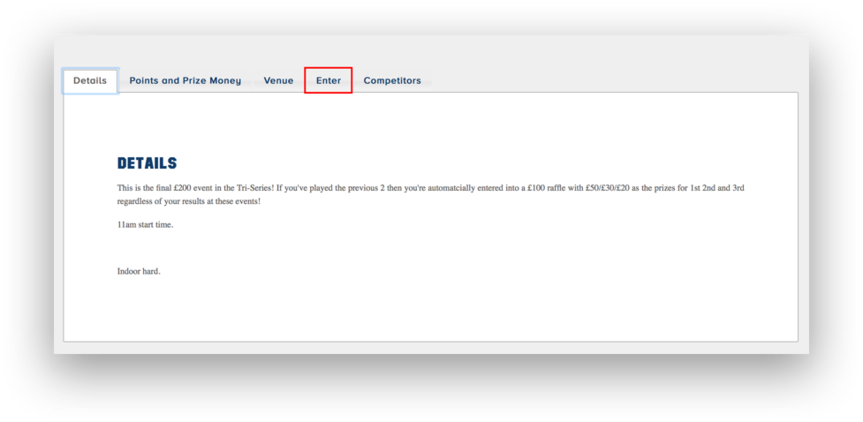
On the tournament's main page, scroll down to see details about the tournament that the manager has added. To enter the tournament, click on the "Enter" tab highlighted in red.

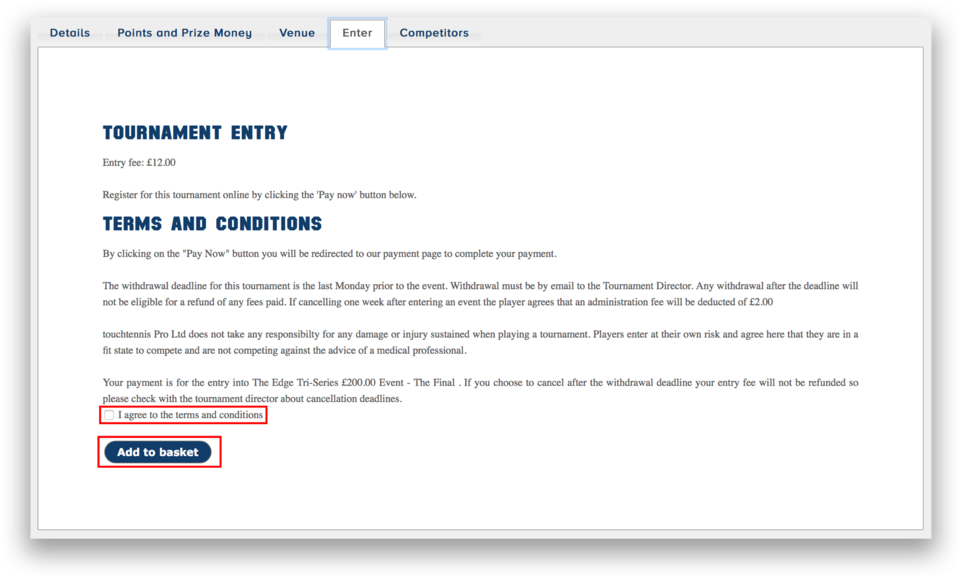
Make sure you click the checkbox to agree to the terms and conditions before pressing the "Add to basket" button.

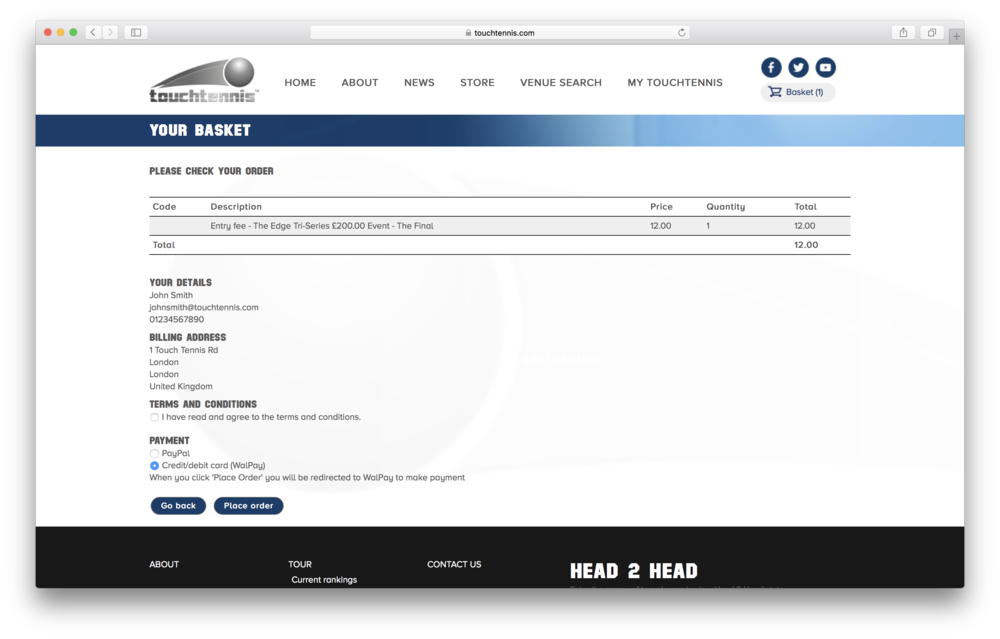
Now you will be brought to the basket checkout screen, when you are ready click on the "Place order" button at the bottom of the screen.

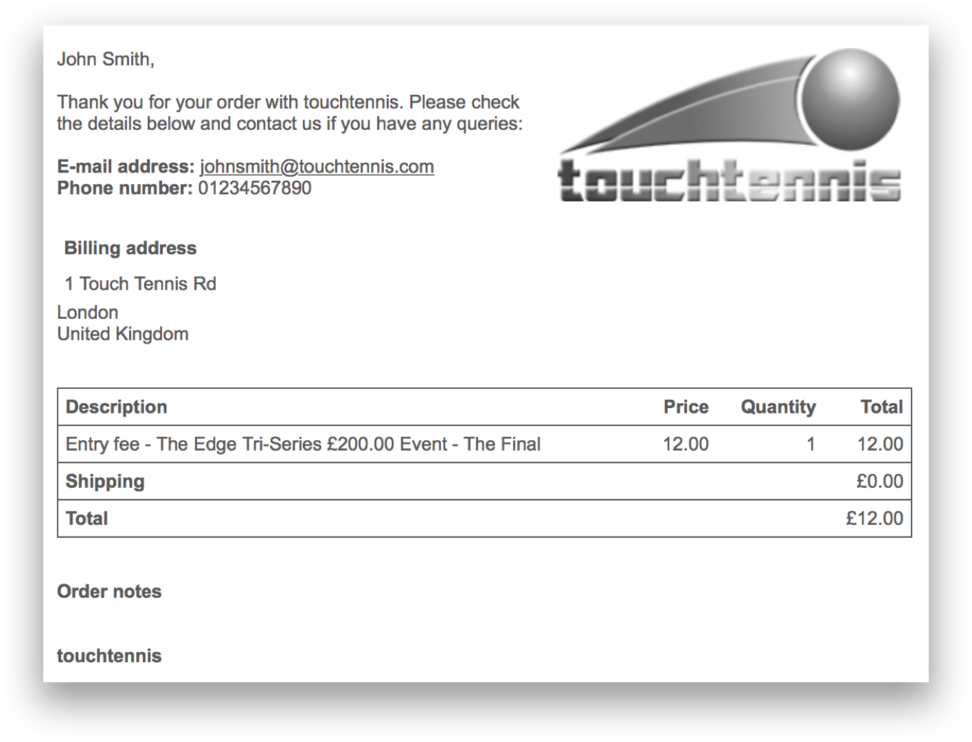
Shortly after having made your payment, you should recieve an email confirming your order which should look like this:

First head to the "My touchtennis" menu on the front page

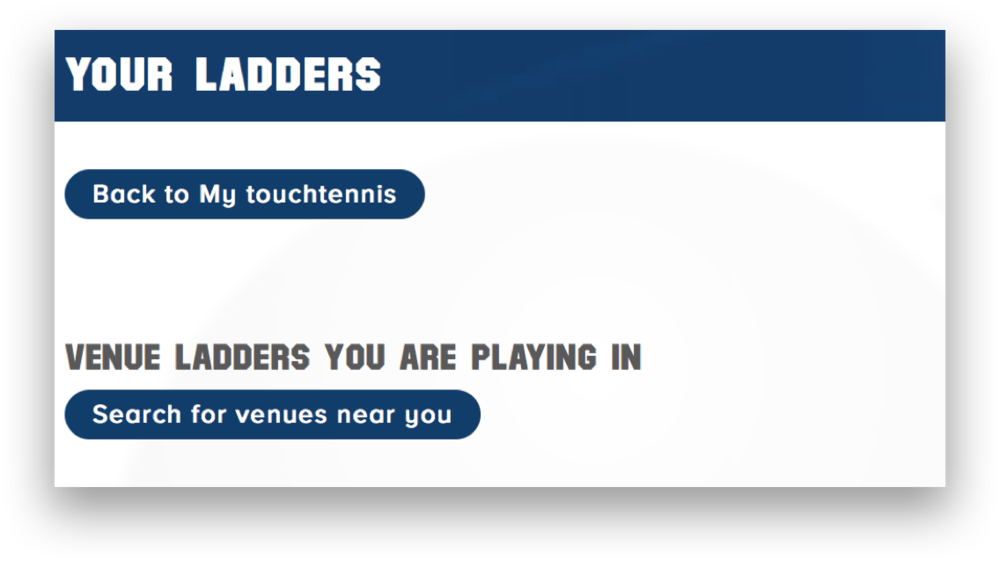
Now click on "Your Ladders"

Now click on "Search for venues near you"

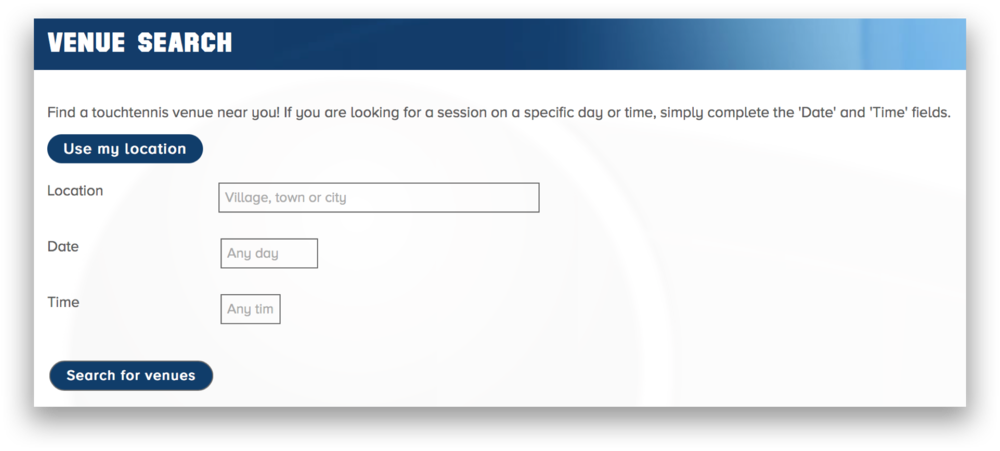
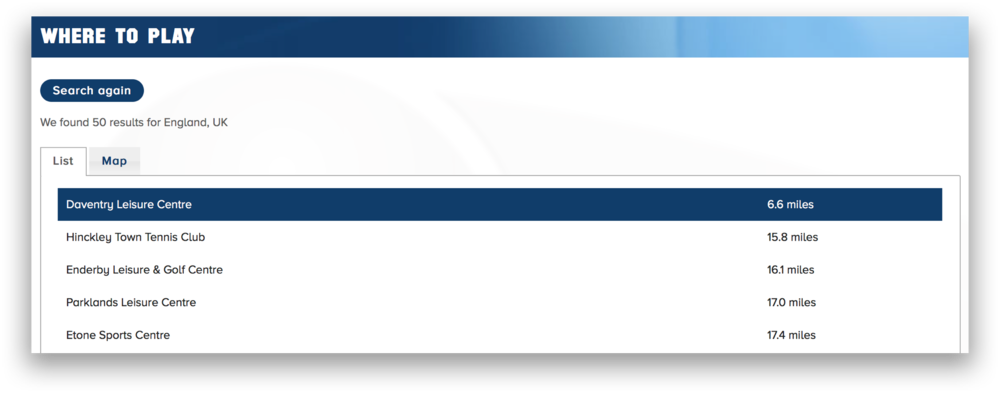
Now you can either click on "Search for venues" straight away to see a list of all the venues registered on the site; type in your town or city and then click "Search for venues" or alternatively click on "Use my location" to automatically search for venues close you.

Now look through the list and find your desired venue and click on it.

Now scroll down and click on the "Ladder" tab, then click on the "Join ladder" button to join the ladder

To challenge another player in any ladder you are playing in, you must first navigate to the ladder's venue page. You can do this by clicking on "Venue Search" at the top of the main page and searching for the town or city the venue is in.

Once you are on the venue's page, scroll down and click on the "Ladder" tab. You can now challenge any players above you in the ladder by finding a player in the list and clicking on the word "challenge" to the right of their details.

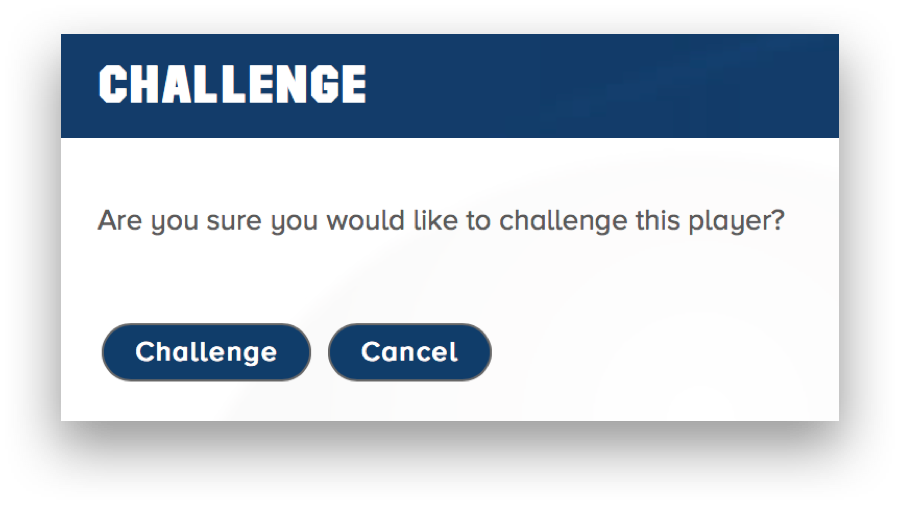
Now you should see a confirmation screen asking if you are sure you want to challenge thie player. If you are, confirm by pressing the "Challenge" button, otherwise press "Cancel".

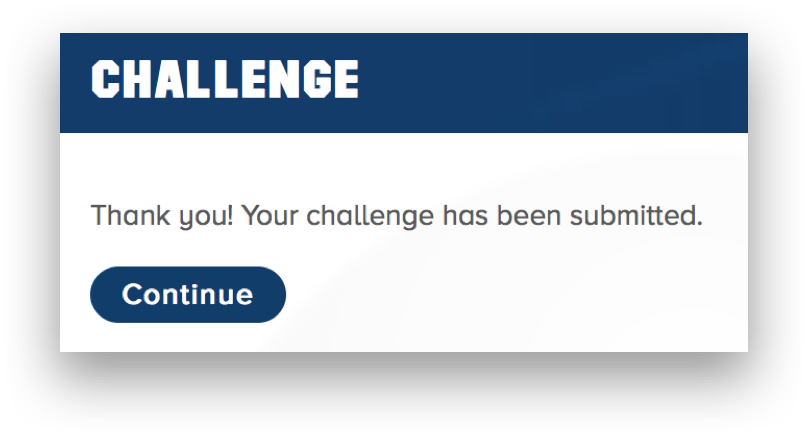
You should now see a screen telling you that your challenge to the player has been submitted. You must now wait for the player to either accept or reject the challenge.

Once the other player has accepted your challenge, either you or the other player can schedule when you are going to play the game by clicking on "schedule".

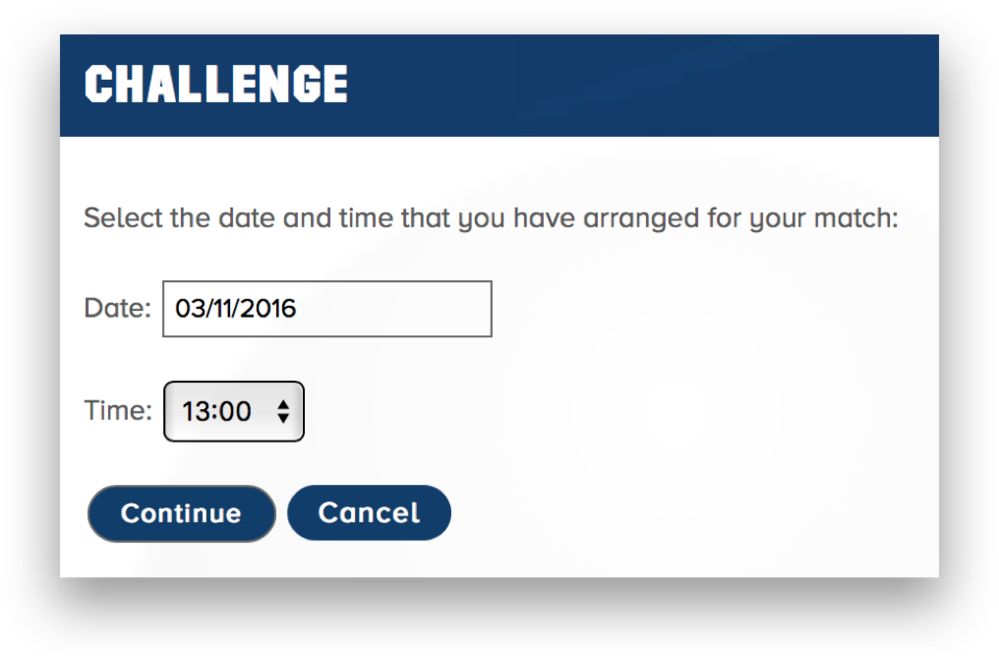
You can then select a date and time for the game.

You or the other player can then reschedule the game until you find a time both players can play.

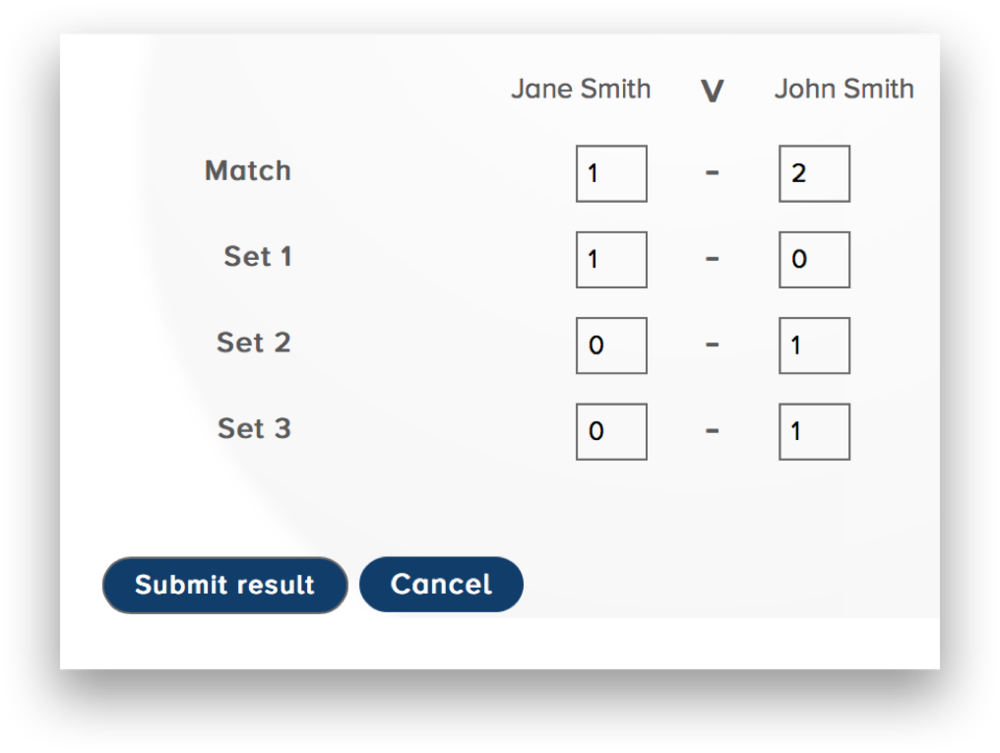
Once the game has been played, you need to return to the site and submit the results of the game set by set, and the website will calculate the winner

Once you have submitted the results of the match, the ladder will update automatically.

It is possible to see if you have been challenged on the venue ladder's page under a fourth tab called "Challenges". If you have been challenged, you have the choice to accept or reject the challenge.

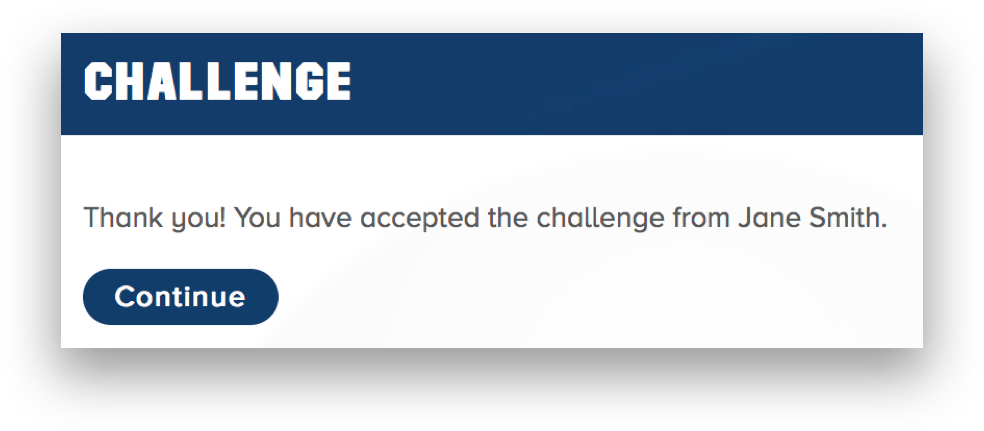
If you choose to accept it, you will see this confirmation page stating that you have accepted the challenge.

Once you have accepted the other player's challenge, either you or the other player can schedule when you are going to play the game by clicking on "schedule".

You can then select a date and time for the game.

You or the other player can then reschedule the game until you find a time both players can play.

Once the game has been played, you need to return to the site and submit the results of the game set by set, and the website will calculate the winner.

Once you have submitted the results of the match, the ladder will update automatically.

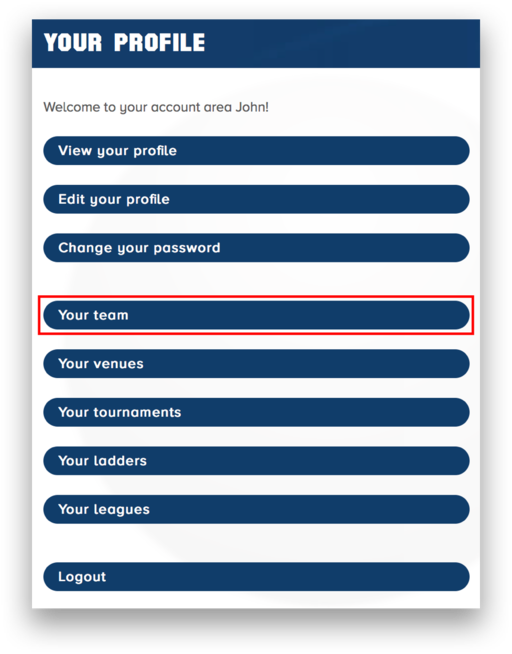
To create your own team that other players can join, you must first login then click on the "My touchtennis" button, highlighted in red here, on the frontpage.

Now you should see this page with 9 buttons on, click on the 4th one titled "Your team"

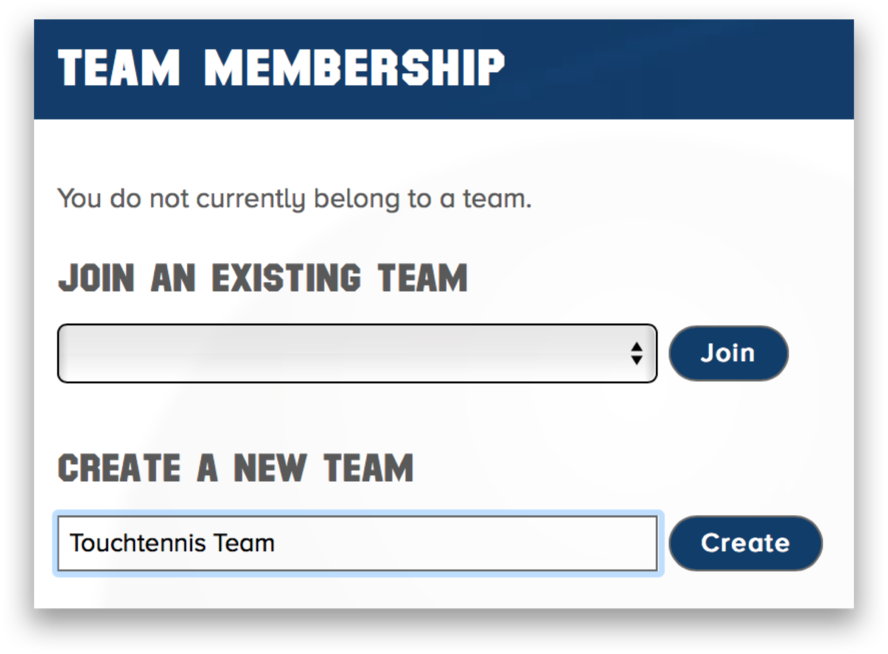
You will then be brought to this page with two options, click on the box below "Create a new team", then type the name of your team and click on the "Create" button to the right of the text box.

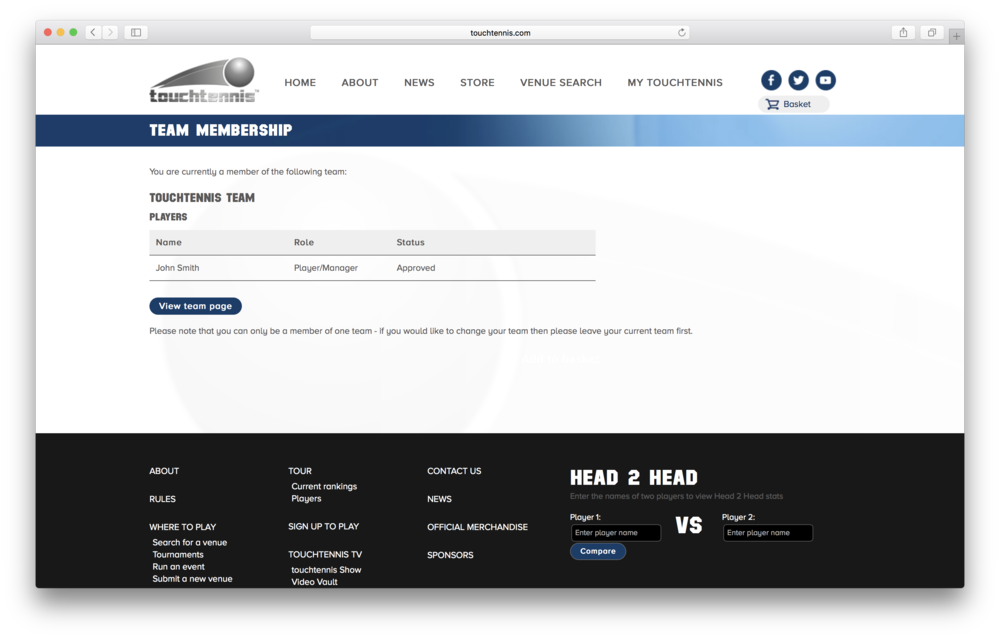
Now you have created your team, you should see a page like this one with your team's name at the top and your player name in the table.

As more people join your team, they will be added to this list which can be accessed by clicking on the "Your team" button in the "My touchtennis" menu.
Joining an existing team is very similar to creating your own team and the first two steps are the same.
First click on "My touchtennis" on the frontpage

Then click on the "Your team" button

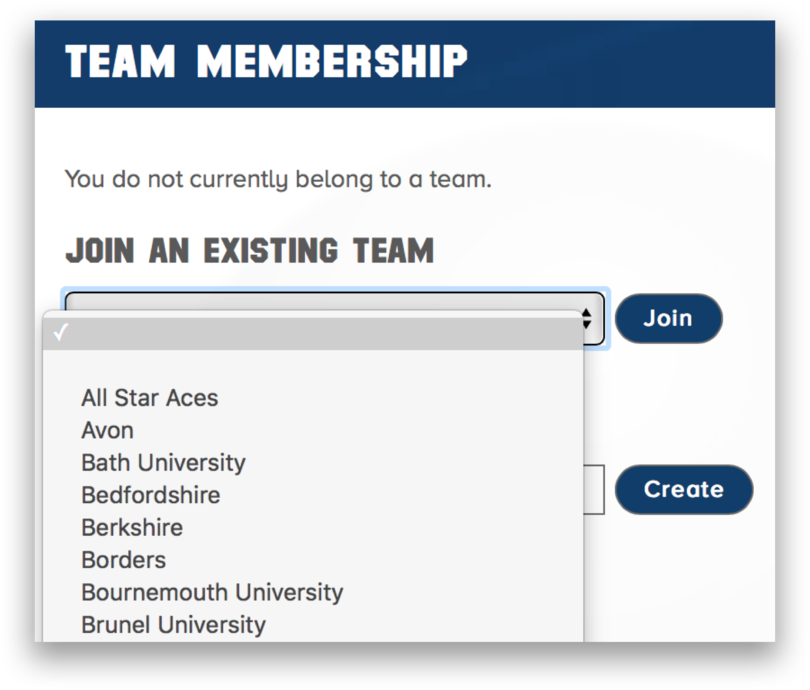
Now click on the drop down box, find the team you want to join and click the "Join" button.

Once you have signed in, head to the "My touchtennis" menu.

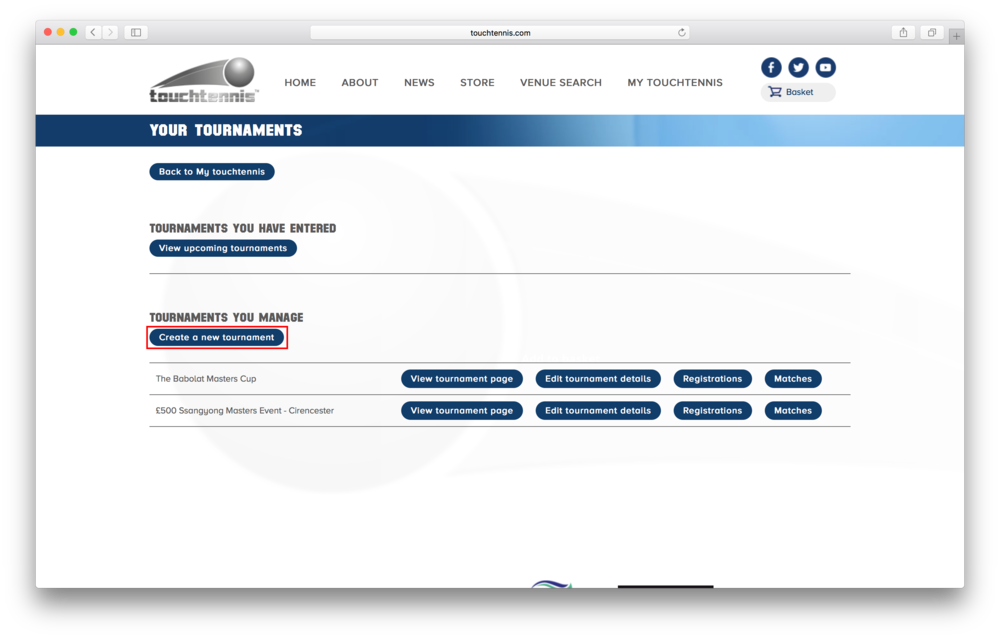
Once in this menu click on the "Your Tournaments" button

Now click on "Create a new tournament"

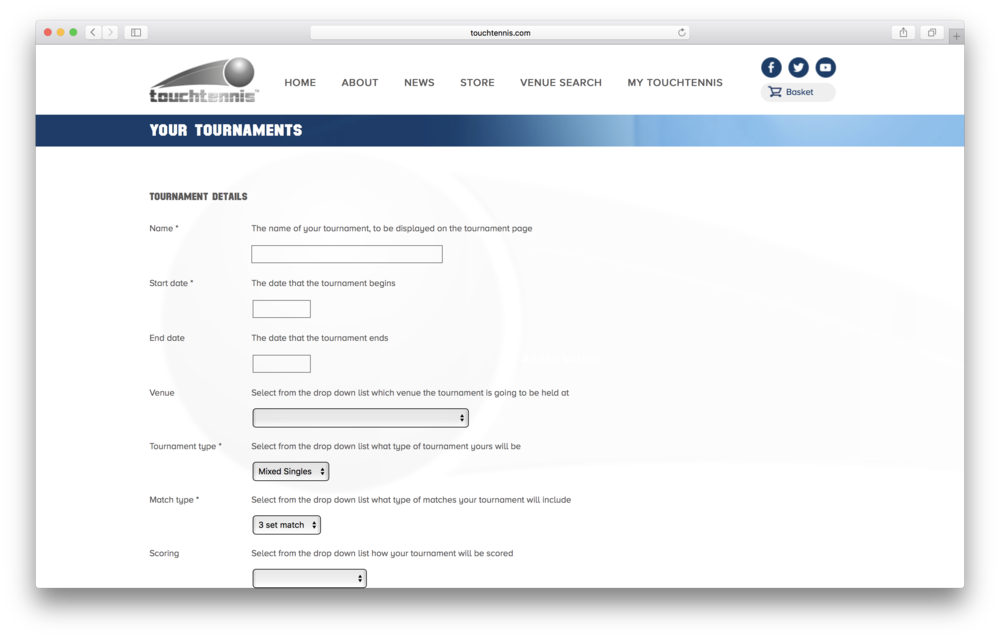
Now you should see a form to fill in with details about your new tournament. Fields marked with an asterisck (*) are required fields

At the bottom of the form is a "Save changes" button, click this to create your new tournment after filling in the rest of the form.